










Automatic1111 - Stable Diffusion web UI
Interactive web interface for generating images with Stable Diffusion using the Gradio framework.
Github.com
Is this your tool?
Follow for updates & deals
Get alerts for Automatic1111 - Stable Diffusion web UI discounts, feature releases & pricing changes
Similar Tools

BlueWillow
Generate unique artwork from text prompts using an easy-to-use interface.

OpenArt
Enhance and transform images with an array of AI tools for quality and creativity.

LetsEnhance
Enhance and upscale images effortlessly with AI-driven tools for photographers and businesses.

PixNova AI
Generate and edit images with AI, including headshots, face swaps, and baby predictions.

Craiyon
Generate unique images from text prompts using an AI art generator.

Automatic1111 - Stable Diffusion web UI Media Gallery

Automatic1111 - Stable Diffusion web UI (review) video
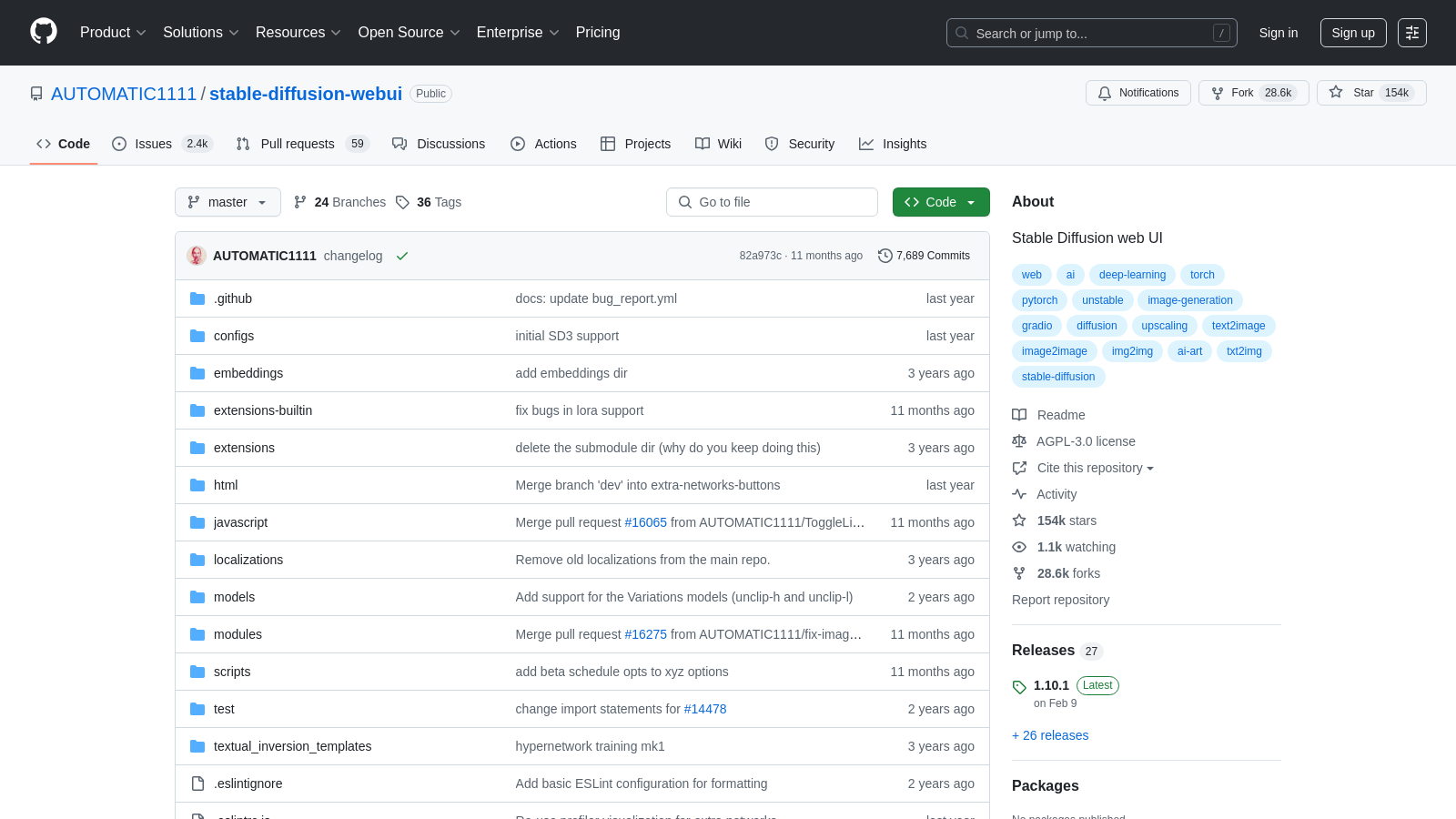
Screenshot of Automatic1111 - Stable Diffusion web UI
What is Automatic1111 - Stable Diffusion web UI?
Stable Diffusion Web UI offers a comprehensive browser interface for Stable Diffusion based on the Gradio library. This intuitive platform serves as a bridge, providing an interactive interface for a technology usually reserved for those with advanced technical expertise. Its user-friendly design ensures that even those not deeply versed in AI technology can make the most of Stable Diffusion's capabilities.
The tool boasts a plethora of features, enhancing the user experience and providing versatility to its users. It supports both text-to-image and image-to-image modes, and a one-click install makes the setup process a breeze, although Python and Git installations are prerequisites. For those diving deeper into image manipulation, features like outpainting, inpainting, and color sketch are incredibly useful. The attention mechanism lets users specify parts of the text that the model should focus on, making the output more precise. Notably, an innovative Loopback feature allows for repeated img2img processing, while the X/Y/Z plot provides a unique way to visualize images with varying parameters. Moreover, the platform supports various neural network upscalers such as GFPGAN, RealESRGAN, ESRGAN, SwinIR, and Swin2SR. Flexibility is at the forefront with options to interrupt processing, support for various video card capacities, and adjustable generation parameters.
Stable Diffusion Web UI's intuitive design extends to its user interface elements. A handy extras tab includes tools like CodeFormer, a face restoration tool, and LDSR for latent diffusion super-resolution upscaling. The settings page is not only comprehensive but user-centric, offering mouseover hints for UI elements and flexibility in adjusting default values. Enhancements like a live image generation preview, progress bar, and the ability to reorder elements in the UI make the user experience seamless. A standout feature is the tiling support, allowing users to create images with textures, ensuring versatility in design outputs.
For those seeking an installation guide, the platform offers detailed instructions for various systems, from Windows 10/11 to Linux and even Apple Silicon. Online service options, such as Google Colab, are also available, providing flexibility based on user preferences. Additionally, community contributions are encouraged, and a dedicated documentation section ensures users have all the resources they need. The "Features" page offers an in-depth look into the capabilities of the Stable Diffusion web UI, while dedicated sections for downloads and models guide users on how to leverage the technology optimally. The integration of advanced tools like Hypernetworks, LoRA, Alt-Diffusion, and Inpainting Model SD2 underlines the platform's commitment to staying at the forefront of AI-driven image manipulation technology.
In conclusion, the Stable Diffusion Web UI is a cutting-edge platform that successfully bridges the gap between complex AI technology and everyday users. Its exhaustive list of features, combined with an intuitive design, positions it as an essential tool for anyone looking to explore the vast possibilities of AI-driven image manipulation.
Pros & Cons
Pros
- Offers a diverse range of image generation features, including outpainting and inpainting.
- Supports custom scripts and community extensions for enhanced functionality.
- Allows for interactive prompt edits during image generation for more flexibility.
Cons
- Requires a proper installation of Python and Git, which may deter beginners.
Frequently Asked Questions
Automatic1111 - Stable Diffusion web UI is available at no cost.
This tool offers a lifetime deal.
{toolName} supports various integrations and extensions to enhance image generation capabilities. This includes tools such as GFPGAN for face restoration, CodeFormer as an alternative, RealESRGAN for upscaling, and additional neural network options, including SwinIR and LDSP. The API also allows for dedicated inpainting models via extensions, making it flexible for diverse use cases.
{toolName} has been reported to work with 4GB video cards and, in some instances, even with 2 GB video cards. It includes features such as live prompt token length validation and supports advanced noise settings, which help optimize performance on lower-end hardware. Users should ensure they meet the required dependencies, particularly if running on systems with graphics processors from NVIDIA, AMD, or Intel.
{toolName} enables users to customize prompts with options such as textual inversion, attention specification, and negative prompting. You can adjust parts of the text to influence the elements in the generated image and use unique embeddings or Loras to experiment with different styles. Additionally, the composable-diffusion feature enables the use of multiple prompts with specified weights.
To install {toolName} on Windows, first ensure that you have Python 3.10.6 installed (note that newer versions may not be compatible). Then, install Git. Download the stable-diffusion-webui repository using the command `git clone https://github.com/AUTOMATIC1111/stable-diffusion-webui.git`. Lastly, run the `webui-user.bat` file from Windows Explorer as a regular user to launch the UI.
Yes, using the xformers extension can significantly speed up image generation on compatible graphics cards. Additionally, leveraging GPU optimizations and batch processing can streamline the workflow. Recommendations include adjusting sampler ETA values and experimenting with different sampling methods to reduce processing times.
For troubleshooting errors in {toolName}, users can start by checking the GitHub issues page for similar reports and potential fixes. Additionally, exploring the community discussions or forums related to the tool can provide insights. If an issue persists, consider submitting a bug report with detailed information to the project's GitHub repository.
Absolutely! {toolName} supports multi-prompts through the composable-diffusion method. You can easily combine different prompts using uppercase 'AND' to generate a diverse range of images. The tool also allows you to specify weights for each prompt, giving you finer control over the influence of each component on the final output.
{toolName} offers various image adjustment features, including outpainting, inpainting, and resizing. You can utilize options for high-resolution fixes and choose from multiple upscaling techniques, such as ESRGAN and RealESRGAN. The application also includes advanced settings for noise management and the ability to restore image parameters for easy modifications.