












ING Bank to Xero CSV Converter
 Verified
Convert Dutch ING Bank transactions to Xero-compatible CSV format
Automateandtweak.com
Is this your tool?
Follow for updates & deals
Get alerts for ING Bank to Xero CSV Converter discounts, feature releases & pricing changes

ING Bank to Xero CSV Converter Media Gallery
What is ING Bank to Xero CSV Converter?
ING Bank to Xero CSV Converter is a free online tool that transforms your Dutch ING Bank transaction exports into a format that can be seamlessly imported into Xero accounting software. Whether you're managing your finances as a freelancer or a small business owner, this tool is designed to save you time and reduce errors in your accounting workflows.
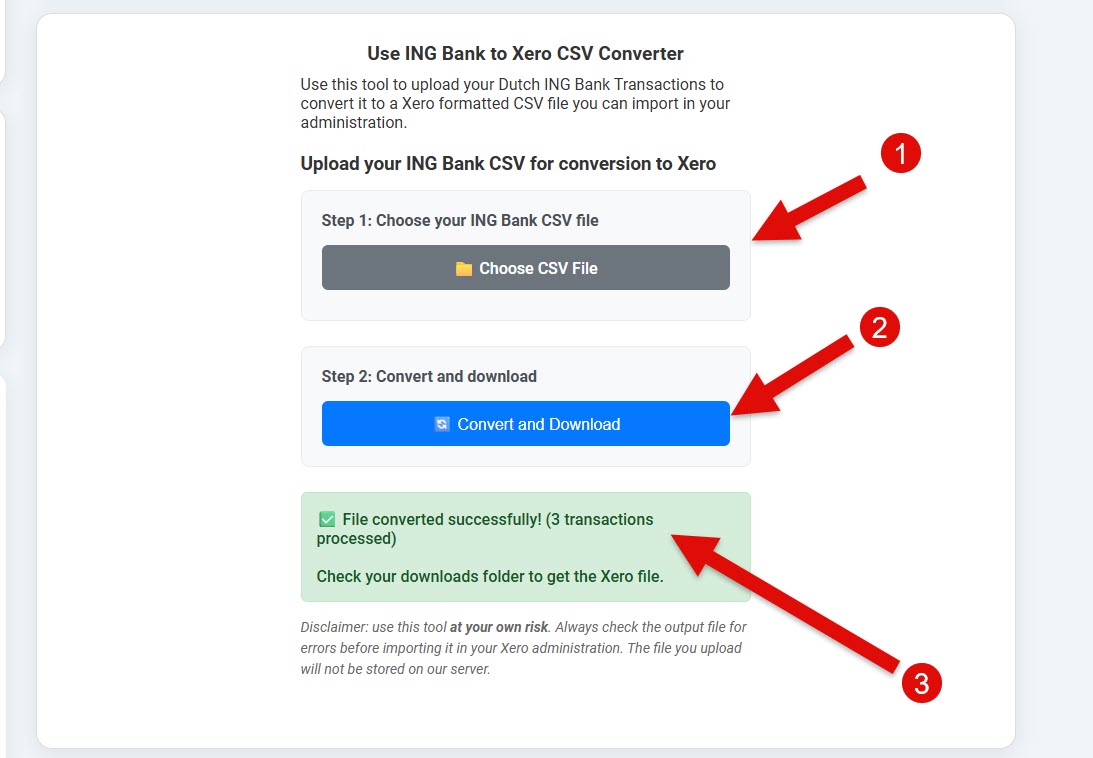
With the ING Bank to Xero CSV Converter, you simply upload your ING Bank CSV file. Our converter will automatically format the data with the correct column headers, date formats, and transaction structures that Xero expects. This means no more manual data entry or formatting headaches! You can focus more on your business rather than on tedious accounting tasks.
The tool handles all the technical details, such as converting dates from YYYYMMDD to MM-DD-YYYY, formatting amounts appropriately, and ensuring proper field mapping. This ensures that your imports work flawlessly every time you use this converter.
Key Features
- Free to Use: Enjoy a fully free service with no hidden charges. This tool is dedicated to simplifying your accounting tasks without any cost.
- User-Friendly Interface: The straightforward upload and conversion process allows you to quickly transform your files without needing extensive technical knowledge.
- Compatibility: This converter is specifically tailored for Dutch ING Bank transaction CSV files, ensuring that the output is perfectly formatted for Xero imports.
- Data Security: Your uploaded files are processed and deleted without being stored, ensuring your sensitive financial data remains private and secure.
- Accurate Formatting: All necessary formatting adjustments are made automatically, so you can trust that your data will fit seamlessly into Xero’s requirements.
How to Use the Converter
Using the ING Bank to Xero CSV Converter is as easy as 1-2-3:
- Upload your ING Bank CSV file.
- Click on the convert button and let the tool process your file.
- Download your newly formatted Xero-compatible CSV file.
No more hassles with spreadsheets or dealing with incorrect formats. This tool takes care of everything so you can import your data into Xero with confidence.
FAQ
What Does the Tool Support?
The ING Bank to Xero CSV Converter supports only comma-separated CSV files from ING Bank in the Dutch language. Make sure your file adheres to this specification to avoid conversion errors.
Can I Process Multiple Accounts?
Currently, you can upload one ING CSV at a time. If you have transactions from multiple accounts, consider merging them into a single CSV or running the conversion for each account separately.
What Security Measures Are in Place?
Your file is processed in real-time, and once the conversion is complete, it is promptly deleted. The tool does not retain any of your data, ensuring complete privacy.
The ING Bank to Xero CSV Converter is a game changer for those who find themselves overwhelmed by the manual entry of banking data into accounting software. This tool not only improves efficiency but also minimizes the risk of errors that can arise from manual processes.
Whether you’re a busy freelancer, a small business owner, or someone just trying to keep their financial records organized, this converter is here to make your life easier. Experience the simplicity and effectiveness of automatic data formatting and importation with just a few clicks. Download your free Xero-compatible CSV effortlessly today!
Use ING Bank to Xero CSV Converter
Frequently Asked Questions
ING Bank to Xero CSV Converter is available at no cost.
According to our latest information, this tool does not seem to have a lifetime deal at the moment, unfortunately.
This tool enables you to upload your Dutch ING Bank transaction records and convert them into a format that can be easily imported into Xero, a popular cloud-based accounting software.
You upload your ING Bank CSV file, and the tool processes the data, making necessary format changes. Once processed, it provides a new CSV file for download, ready to be imported into Xero.
Currently, this tool supports only comma-separated CSV files from ING Bank in the Dutch language.
Yes, as of now, it only supports ING Bank. However, if you're interested in support for a different bank or a custom solution, please get in touch with us by email at contact@automateandtweak.com
No. Your file is processed and deleted in the same request. Nothing is logged or retained after the conversion attempt is complete.
Common causes: wrong separator, English column names, extra header lines inserted by Excel, or saving as “CSV UTF‑16”.
Upload one ING CSV at a time. If you have several, merge them first (keep only one header row) or run the converter multiple times.
No preview is kept server‑side; however, after conversion the interface shows a success banner with the number of rows processed so you can cross‑check quickly.
Not at the moment. The PHP endpoint expects a multipart form upload and returns JSON; contact us if you need programmatic access.
ING’s CSV doesn’t supply those fields. You can fill them later inside Xero if needed.
*Date, *Amount, Payee, Description, Reference, Cheque Number, Transaction Type, Analysis code. The last four are left blank because ING’s export doesn’t supply that data.
The 'Af Bij' column is read: rows marked “Af” become negative numbers; “Bij” stay positive. Amounts are then converted from European decimal commas to dots (e.g. 1.234,56 → 1234.56).
No. The converter only parses comma‑separated, Dutch‑language exports. Open the file in a spreadsheet, re‑save as comma‑CSV, or switch ING to Dutch before exporting.
The first line must be a comma‑separated row (Dutch locale) in this order: Datum, Naam / Omschrijving, Rekening, Tegenrekening, Code, Af Bij, Bedrag (EUR), Mutatiesoort, Mededelingen. Any deviation triggers the “invalid format” error.
Files are named YYYY‑MM‑DD HH:MM:SS – XERO Format – N transactions.csv so you can tell runs apart.
The tool itself has no cap, but your server’s upload_max_filesize (often 2–8 MB) still applies. Split huge exports or ask support to raise the limit.
In principle, yes. If you'd like a self-hosted or white-label version or support for other banks, please reach out to us at contact@automateandtweak.com for licensing or a custom build.